
Organizer guide
Live captions for your event
Speakers present in their own language. Attendees read live captions on their phones in any language available for the event.
Set up the audio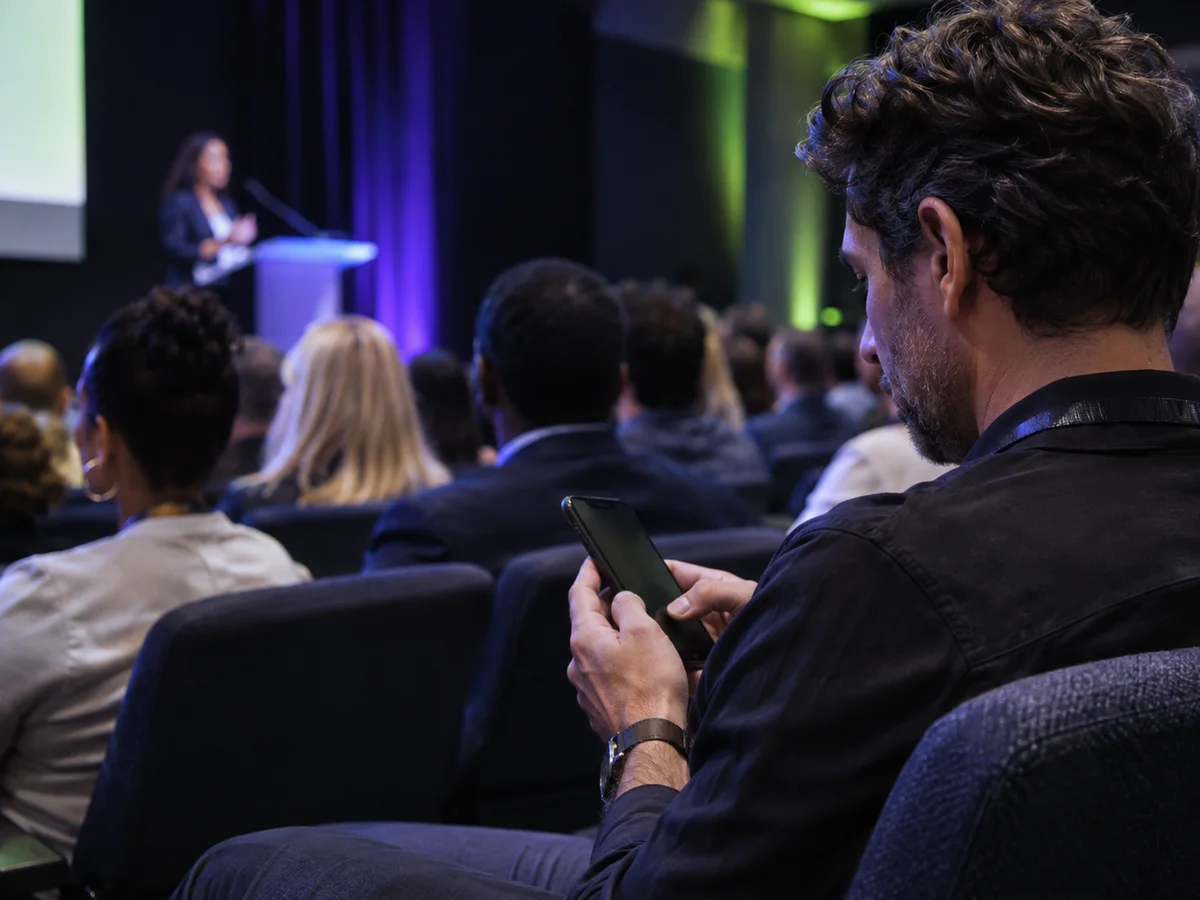
- TRQR prepares for your event
- Before the event, email your topic, speaker names, and specialist terms to hello@1o.io. We use them to prime the captions, so TRQR recognizes and translates the words people will use. You can review or add to them under Improve caption accuracy on the capture screen.
- Your team provides clear speech
- A direct feed from the microphones helps TRQR hear the speakers clearly, even in a busy room.
Venue AV and caption operator
Connect and check the stage audio
For a mixer with USB audio, send the speech mix to the capture laptop. For an analog mixer, connect a line-level output to a USB audio interface. A close USB microphone can plug straight into the laptop for a single speaker.
- Open your organizer link and select Test microphone. Allow browser access if prompted.
- Choose the mixer, interface, or USB microphone as the input.
- Speak at show volume into each mic you’ll use. The TRQR meter should move with speech and the sound check should turn green. Have AV check the mixer or interface’s clip indicator and adjust the gain if it clips.
Caption operator
Prepare the capture laptop
Keep the capture page open and in front, and keep the laptop awake to avoid interruptions. Use a dedicated capture laptop during the event.
- Dedicate the laptop. Don’t run the slides on it. A full-screen presentation hides the capture page. Use a current Chrome, Edge, Firefox, or Safari with one window and the capture page in front.
- Plug it in. Run on mains power from the start. The battery is the backup, not the plan.
- Stop it sleeping. Set sleep and display-off to never while plugged in, and keep the lid open. Once you start, the capture page should say Screen kept awake. If it says wake protection is not active, the system setting is your only protection.
- Turn off energy saving. Low-power and battery-saver modes, in the system and in the browser, can slow or suspend the page.
- Prevent interruptions. Postpone system updates and restarts for the day. Quit meeting apps such as Zoom or Teams so nothing else takes the microphone.
- Check the connection. Use wired internet or the venue’s production Wi-Fi. The audio needs about 1 Mbps of steady upload. Keep a phone hotspot ready as a fallback.
Mac
- Microphone access
- System Settings → Privacy & Security → Microphone. Allow your browser.
- Sleep
- System Settings → Lock Screen. Set “Turn display off on power adapter when inactive” to Never. Under Battery → Options, turn on “Prevent automatic sleeping on power adapter when the display is off”.
- Energy saving
- System Settings → Battery. Choose Automatic for the power adapter under Energy Mode, or set Low Power Mode to Never if that’s the option shown.
- Audio input
- System Settings → Sound → Input. The mixer or interface is listed and its level moves with speech.
Windows
- Microphone access
- Settings → Privacy & security → Microphone. Turn on microphone access and “Let desktop apps access your microphone”.
- Sleep
- Settings → System → Power & battery. Open “Screen, sleep, & hibernate timeouts” or “Screen and sleep”. Set the plugged-in timers to Never.
- Energy saving
- Settings → System → Power & battery. Turn Energy saver off and set Power mode to Best performance.
- Audio input
- Settings → System → Sound → Input. Choose the mixer or interface, then turn Audio enhancements off in its properties.
Setting names vary slightly between system versions.
Have a backup ready
Keep your organizer link handy on a second device that can receive the stage audio. If the capture laptop fails, have AV connect the mixer, interface, or USB microphone to the backup. Open the organizer link there, select the input, and repeat the sound check. Select Start event to take over.
Caption operator
Scan the QR, then start captions
-
Before the session
Scan the audience QR
Get the QR and attendee link from Share with the room. Scan the version the audience will see and confirm it opens the right event. The page can show Waiting until you start.
-
At showtime
Select Start event
Start from the organizer capture screen. It will show Live once capture is active.
-
When capture is live
Cue the MC
Ask the MC to show the audience QR and read the join instructions.
While captions run
- Keep the capture page open and in front. Don’t switch tabs or apps, close the lid, or lock the screen. Browsers can pause capture in the background.
- Pause for breaks. Select Pause to stop sending microphone audio. Attendees see Finishing while the remaining audio is captioned, then Paused. Caption time stops when those streams disconnect. Select Resume when the next session starts.
- End once. After the final session, select End event.
MC
Tell the room how to join
Put the QR, the attendee link, and the available languages on your opening slide. The link sits under the QR in Share with the room. Select Copy to paste it into the agenda or stream chat.
Read aloud
“For live captions, scan the QR code with your phone camera and choose your language. If you can’t scan it, type the link on screen into your browser.”
If something goes wrong
Keep this guide on a second device or print it. Leaving the capture page during the event can pause the captions.
| What you see | First action |
|---|---|
| The mic meter stays flat | Check the selected input and browser microphone permission. Ask AV to check mixer mute and the cable, then repeat the sound check. |
| Start event is disabled | Follow the message beside Start event. |
| Capture shows Interrupted, or captions stop for the room | Bring the capture page back to the front and wake the laptop. Check its internet connection, then select Resume capture if prompted. |
| The browser or laptop crashes or restarts | Attendees see Paused and keep the captions so far. Reopen your organizer link, complete the sound check if prompted, and select Start event. If the laptop won’t come back, move capture to the backup device. |
| An attendee can’t scan the QR | Have them type the attendee link from the slide into their browser. |
If the interruption continues, ask the MC to tell the room and email hello@1o.io with the event name, time, and message on the capture screen.